Creating a Project
A project is the workspace for one brand, website, or content strategy. It stores your editorial policy, generated outlines, articles, and workflow shortcuts in one place.
Where project creation starts
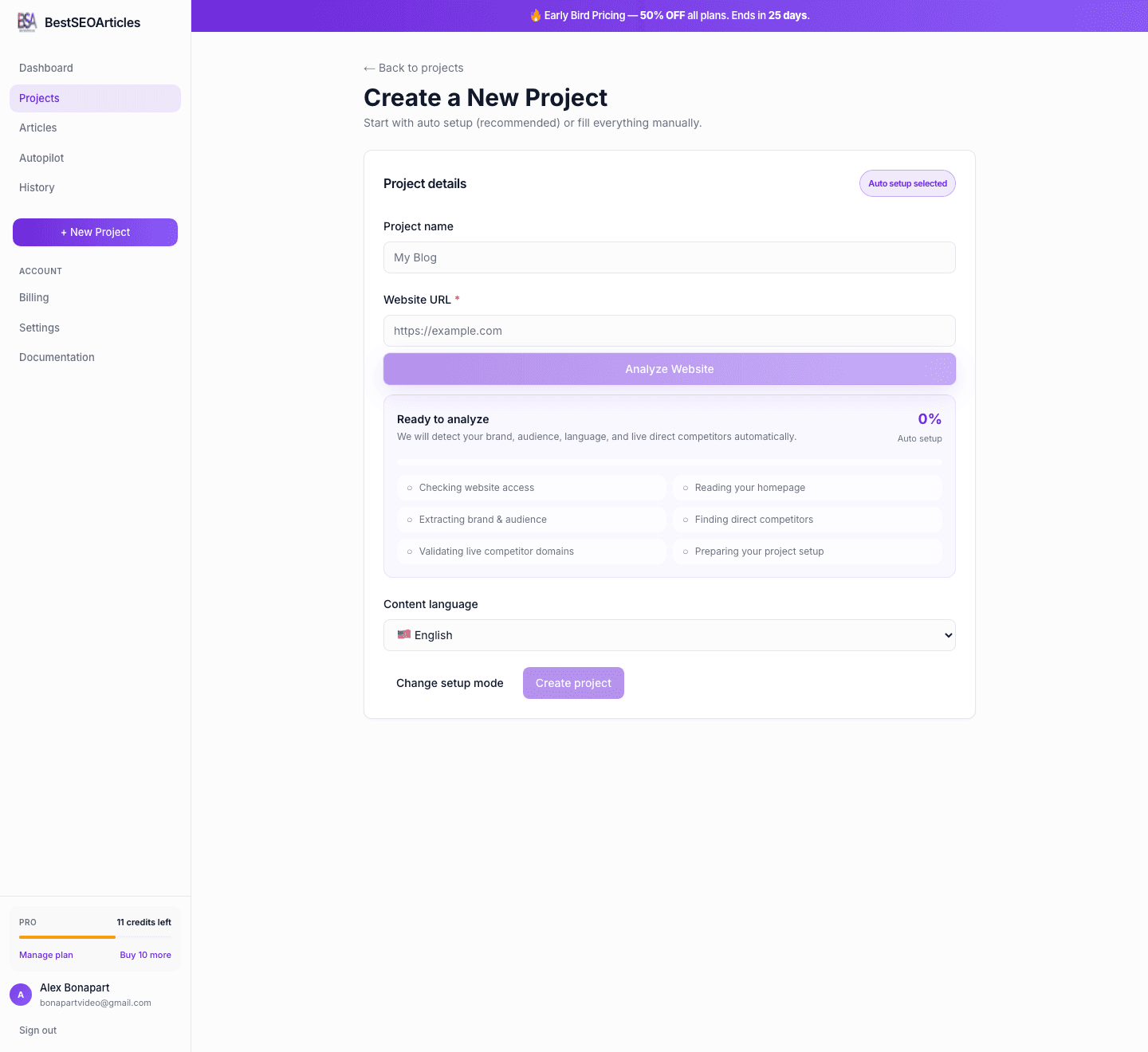
From the dashboard, open Create a New Project. This screen is the entry point for three setup paths: website-based setup, manual setup, and keyword-based setup.
The 3 setup modes
1. I have a website
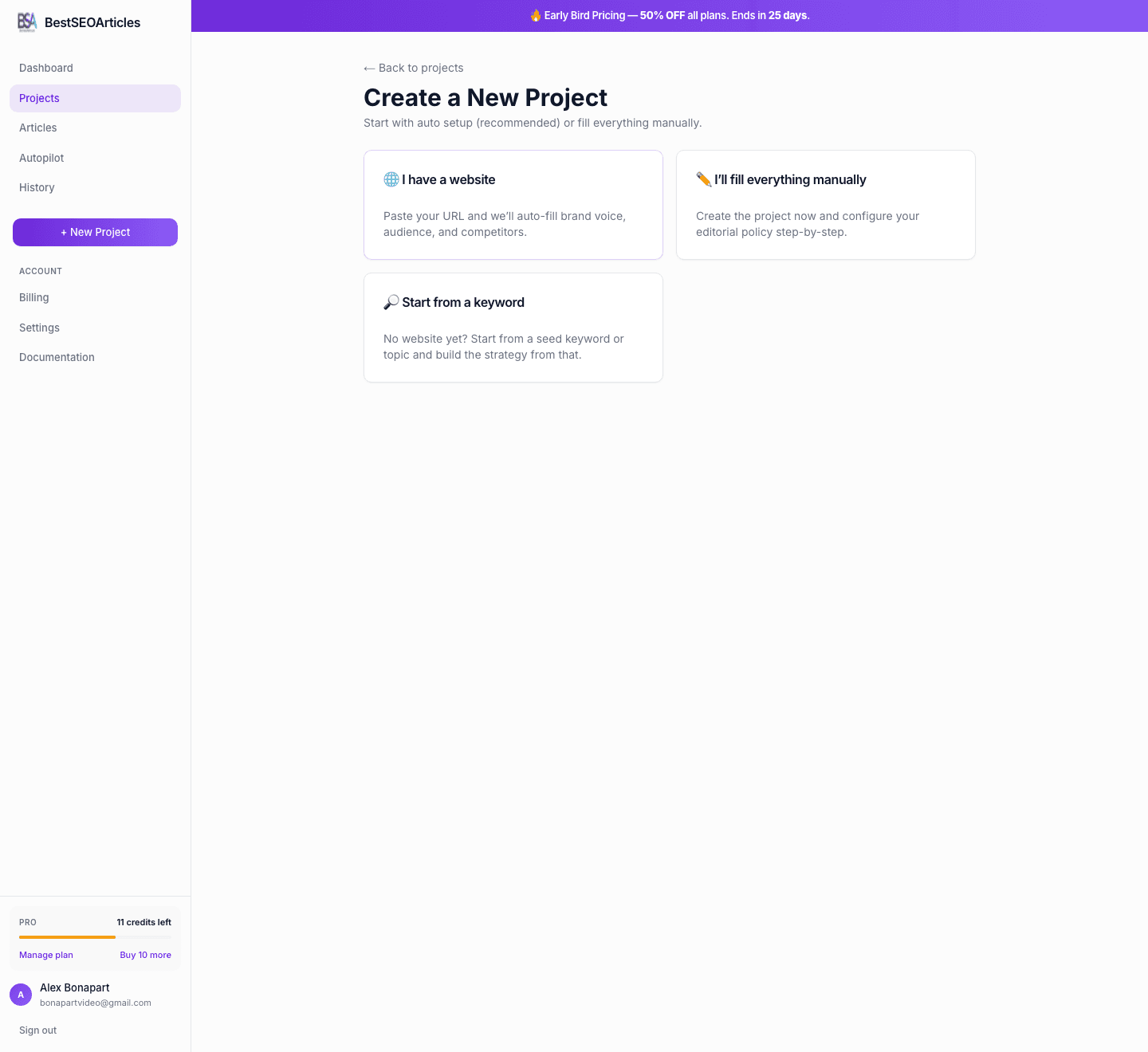
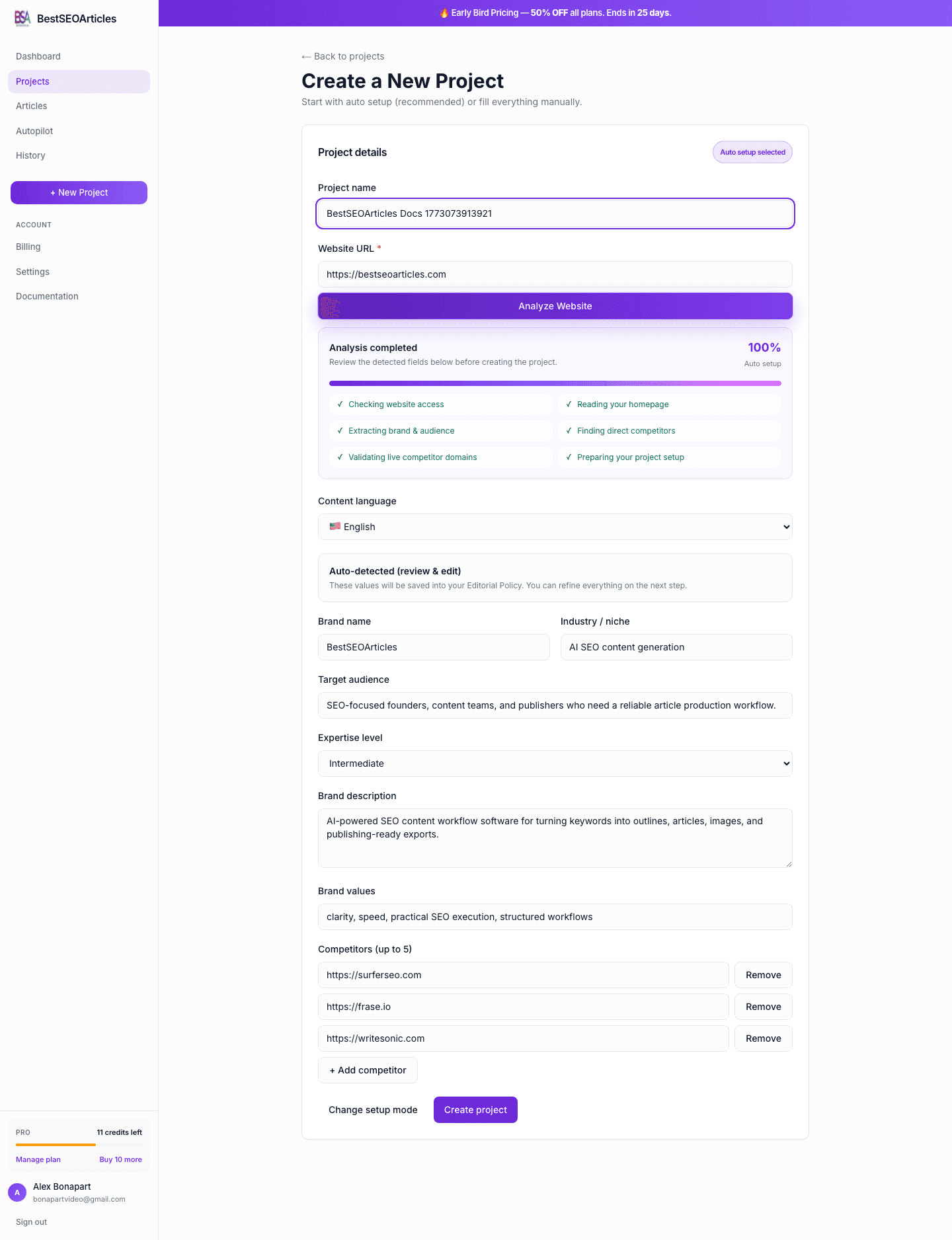
This is the recommended option when you already have a site. It uses the website URL to prefill your project context and speed up the rest of the workflow.
- Best for: existing businesses, blogs, SaaS sites, agencies, ecommerce brands.
- Main action: paste the URL and click Analyze Website.
- What it prefills: brand name, audience hints, niche, and competitor context.
2. I’ll fill everything manually
Choose this if your brand is still being planned, the website is private, or you want full control over the setup inputs from the start.
- Best for: new sites, client projects, content pilots, unreleased products.
- Main inputs: project name and default language.
- What happens next: after project creation you land in Editorial Policy to define the brand in detail.
3. Start from a keyword
This mode is useful when you want to explore a topic before a full website or brand setup is available. You enter a seed keyword and build the content strategy around it.
- Best for: niche research, affiliate sites, new content clusters, topic validation.
- Main input: a seed keyword or topic phrase.
- Result: the project can bootstrap its policy from the keyword and continue into outline generation.
Recommended setup flow
- Go to Dashboard → New Project.
- Choose the setup mode that matches your situation.
- Enter a project name, or let the keyword become the project name when appropriate.
- If you use website mode, click Analyze Website and review the detected context.
- Click Create project.
- After creation, continue immediately to Editorial Policy.
What is stored in a project
- Project name, the workspace label used throughout the dashboard.
- Website URL, optional, but useful for auto-analysis and website-based content research.
- Default language, the primary language for future content.
- Editorial policy, the brand rules and writing preferences for the project.
- Outlines, saved keyword research and article structures.
- Articles, generated drafts and edited content.
What happens after project creation
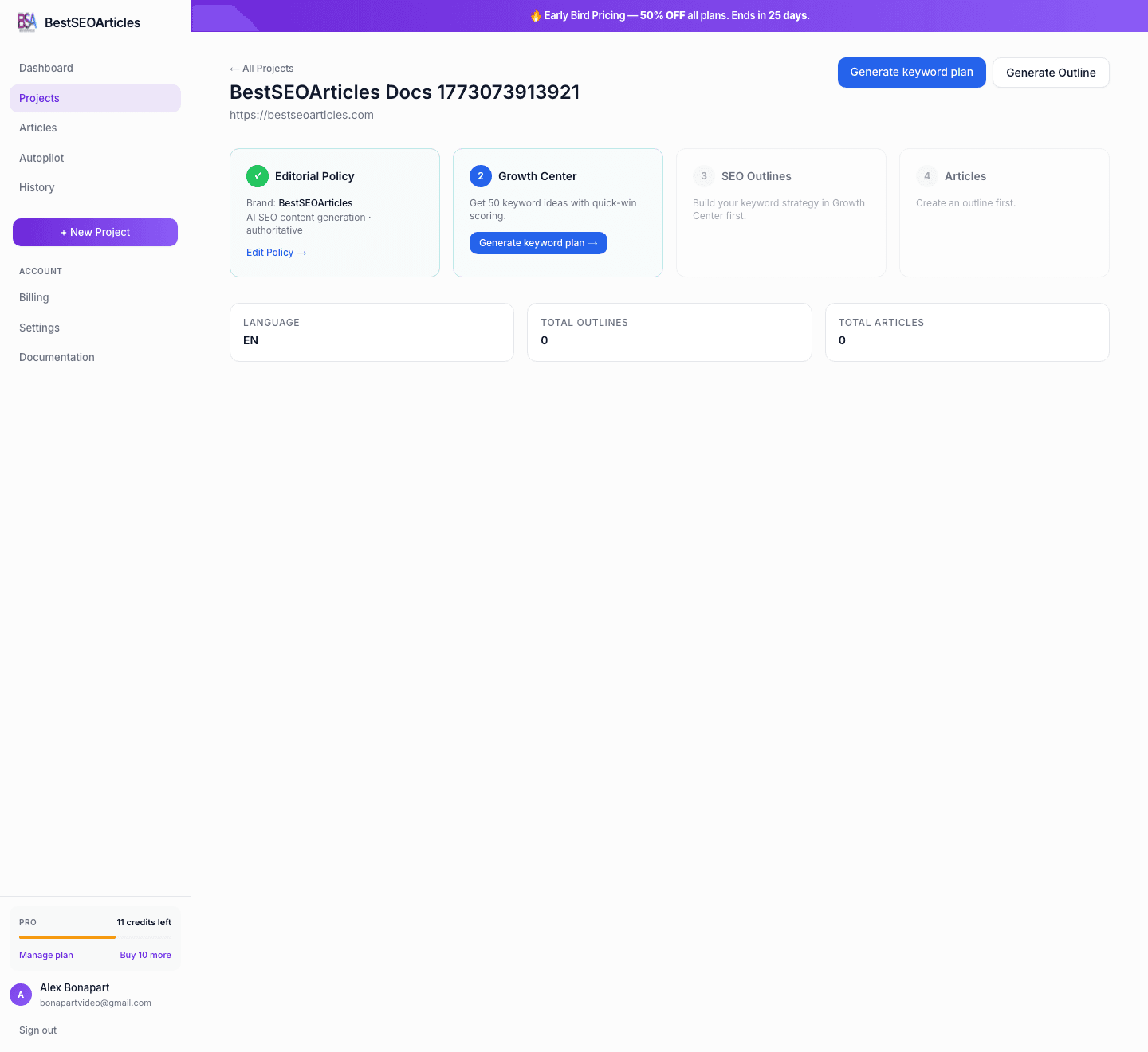
BestSEOArticles redirects you to the project policy flow right after creation. That is where you define the rules the AI should follow for every outline and article in the project.
If you skip that step, you can still generate content later, but the strongest results usually come from defining your audience, tone, restrictions, and structure first.
Project limits by plan
| Plan | Max projects | Typical use case |
|---|---|---|
| Starter | 1 | Solo workflow for one brand or one site. |
| Growth | 3 | Multiple properties, client work, or parallel niches. |
| Pro | 10 | Agencies, portfolio publishers, and large content operations. |
Next step
Continue to Editorial Policy to define how content for the project should sound, what it should include, and what it must avoid.