Generating Articles
BestSEOArticles can generate articles either from a completed outline or directly from a keyword. The best workflow is usually Growth Center → Outline → Article because it gives the system a stronger SEO brief before writing begins, but you can also jump straight into keyword-based generation when you need speed.
Recommended workflow
If you want the strongest, most consistent articles, use this order:
- Open a project and build or review ideas in Growth Center.
- Create an outline for the keyword you want to target.
- Review the outline preview.
- Launch article generation from that outline.
- Review the finished draft in the editor, then export or publish it.
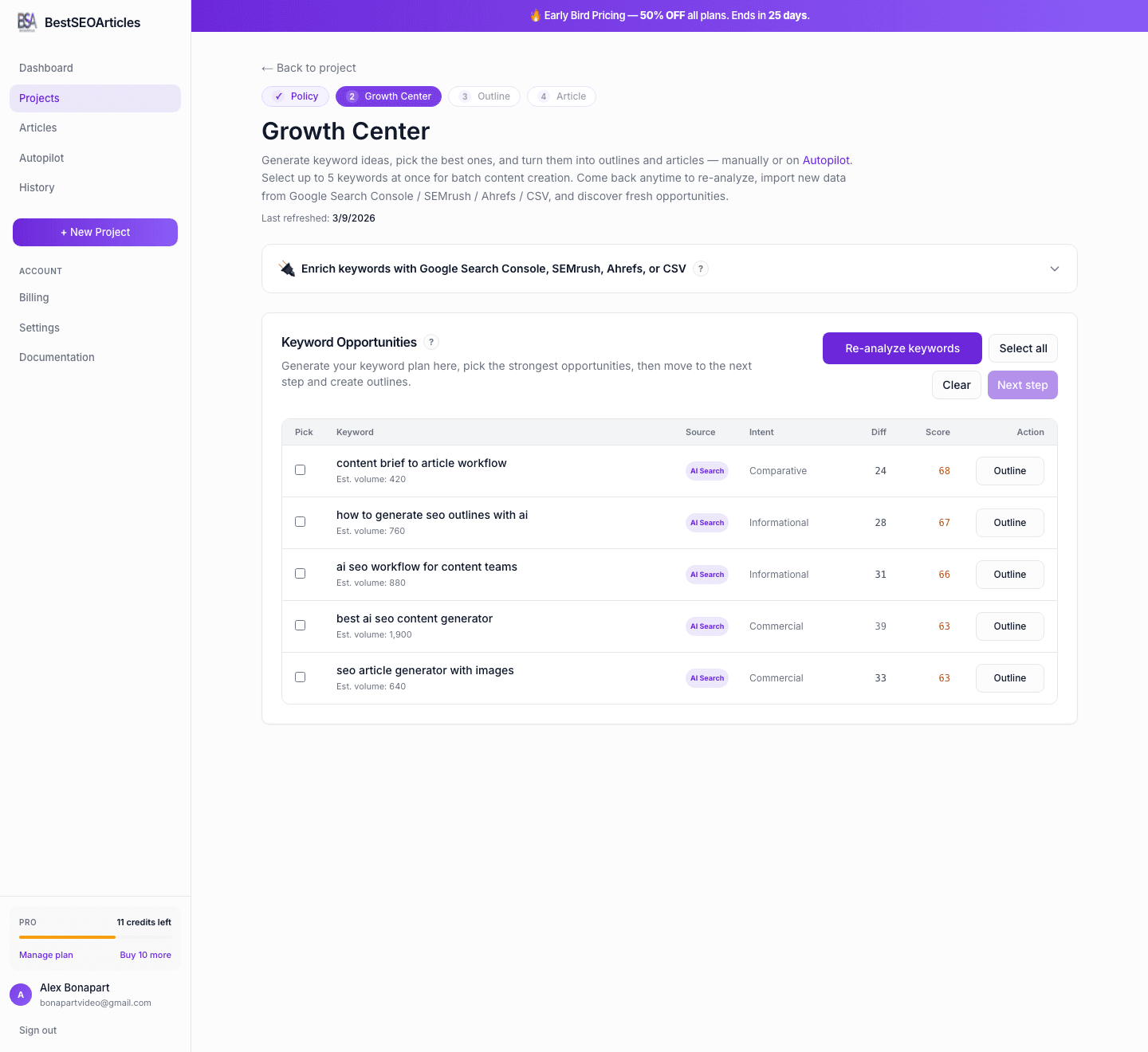
This flow is slower than typing a keyword directly, but it usually produces better structure, stronger topical coverage, and less editing work later.
Where you can start article generation
Generate from an outline
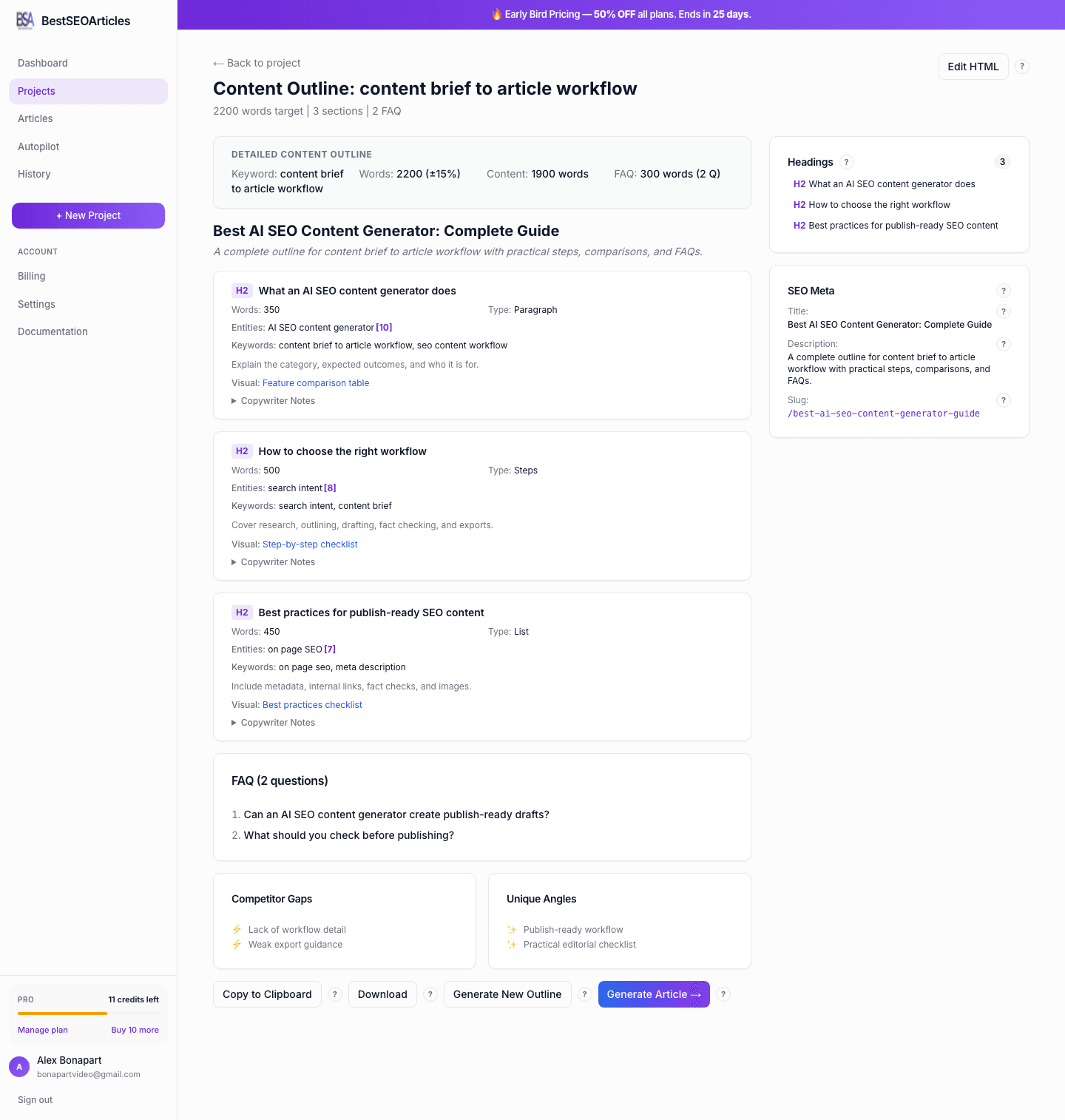
This is the recommended workflow for higher-quality SEO content. From the outline preview page, click Generate Article → and the article form opens with the outline already selected.
- The keyword is locked to the selected outline.
- The structure of the article follows the outline sections and notes.
- This is the most consistent option for publish-ready work.
Generate from a keyword
If you do not want to build an outline first, you can generate directly from a keyword inside the project’s generation page. This is faster, but gives you less control over the article structure upfront.
- Best when you already know the exact keyword you want.
- Useful for speed, rapid drafts, or low-risk content.
- Usually requires a little more review in the editor afterward.
Before you spend a credit
Before clicking generate, make sure you are clear on the following points:
- Project context, the article belongs to the correct project and brand setup.
- Keyword choice, the target keyword is specific enough to support one focused article.
- Article size, choose a length that matches the search intent and business goal.
- Policy usage, keep it enabled if you want the draft to follow your editorial rules.
- Promotion settings, decide how strongly the article should mention your business.
- Linking mode, decide whether to keep links minimal or include broader references.
The generation form
The generation screen includes outline selection, article size, policy usage, brand-promotion settings, linking controls, and an optional email notification toggle.
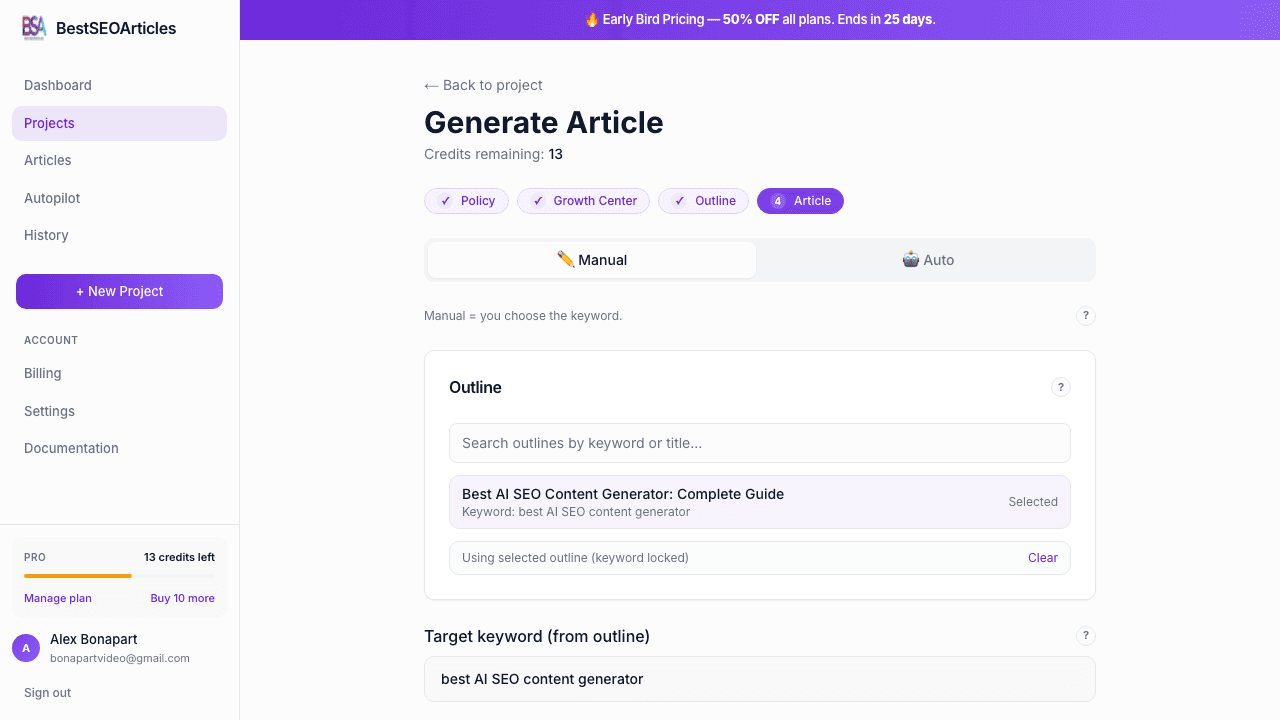
Fastest way to use the form
- Select a completed outline if you already have one.
- If not, enter a clear target keyword manually.
- Pick the article size that matches the goal of the page.
- Keep Use policy enabled unless you intentionally want a neutral draft.
- Set brand-promotion and linking behavior.
- Click Generate, 1 Credit.
Outline selection
At the top of the form, you can search and select from completed outlines in the current project. When an outline is selected, the article keyword becomes locked to that outline for consistency.
Target keyword
If you are not using an outline, enter the main keyword you want the article to target. For best results, use a specific search phrase rather than a broad category term.
Article size
Choose Short, Medium, or Long. Size affects the target word range and the number of generated images.
| Size | Target length | Images | Best for |
|---|---|---|---|
| Short | About 800–1,000 words | 1 | Short explainers, updates, lightweight landing-support content. |
| Medium | About 1,500–2,000 words | 2 | Standard SEO blog posts and most commercial articles. |
| Long | About 2,500–3,500 words | 3 | Guides, comparisons, pillar content, and stronger authority pages. |
Use policy
Enable Use policy when you want the generation to follow the project’s editorial policy. This is usually the right choice because it improves brand consistency and reduces cleanup in the editor.
Promotion & linking
The form includes two article-level controls that affect how the finished content references your business.
- Promote my business naturally adds contextual brand mentions and light CTA framing where relevant.
- Linking mode lets you choose no links, links to your business only, or your business plus relevant external tools/software.
How to choose the right settings
- Short works well for quick supporting articles and simple questions.
- Medium is the default for most blog posts and commercial SEO pages.
- Long is best for detailed guides, alternatives posts, comparisons, and pillar pieces.
- Promote my business naturally is good for product-led or service-led content.
- Brand only linking is a safe default when you want internal focus.
- Brand + external is useful when the topic benefits from references to tools, platforms, or sources.
Email notification
If you enable the notification checkbox, BestSEOArticles can email you when the article is ready.
Generation progress
After you click Generate, 1 Credit, the page moves into a progress view that tracks the article job until completion.
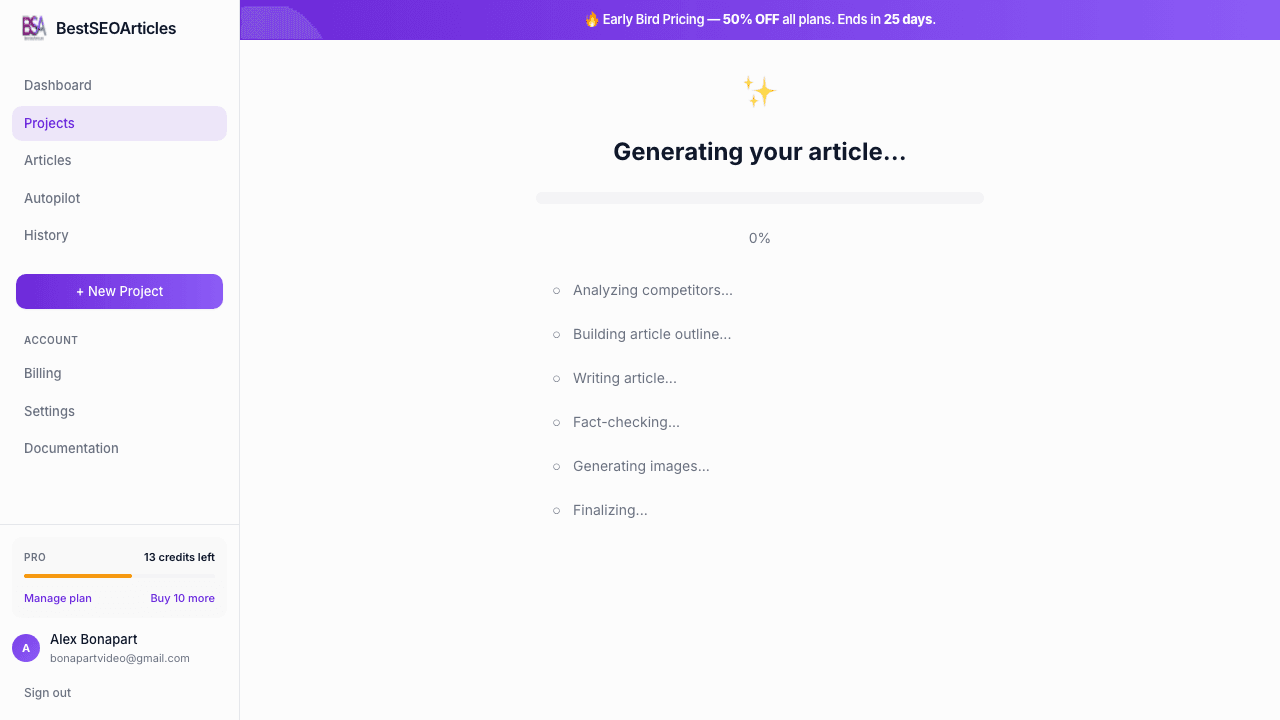
The progress steps can include competitor analysis, outline building, article writing, fact checking, and image generation depending on the workflow and content type.
- Research, the system reviews the target topic and supporting context.
- Structuring, it maps the article shape from the keyword or selected outline.
- Writing, the full draft is generated section by section.
- Fact-checking, important claims can be validated and corrected if needed.
- Images, the included image set is generated based on article size.
- Redirect, once finished, you are taken into the article editor.
What to expect after generation
A completed article usually arrives with a title, article body, metadata suggestions, images, and basic quality metrics. You should still review the draft before publishing, especially for factual accuracy, product claims, and tone.
The article editor
When generation finishes, BestSEOArticles redirects you to the article editor. This is where you refine, review, and export the draft.
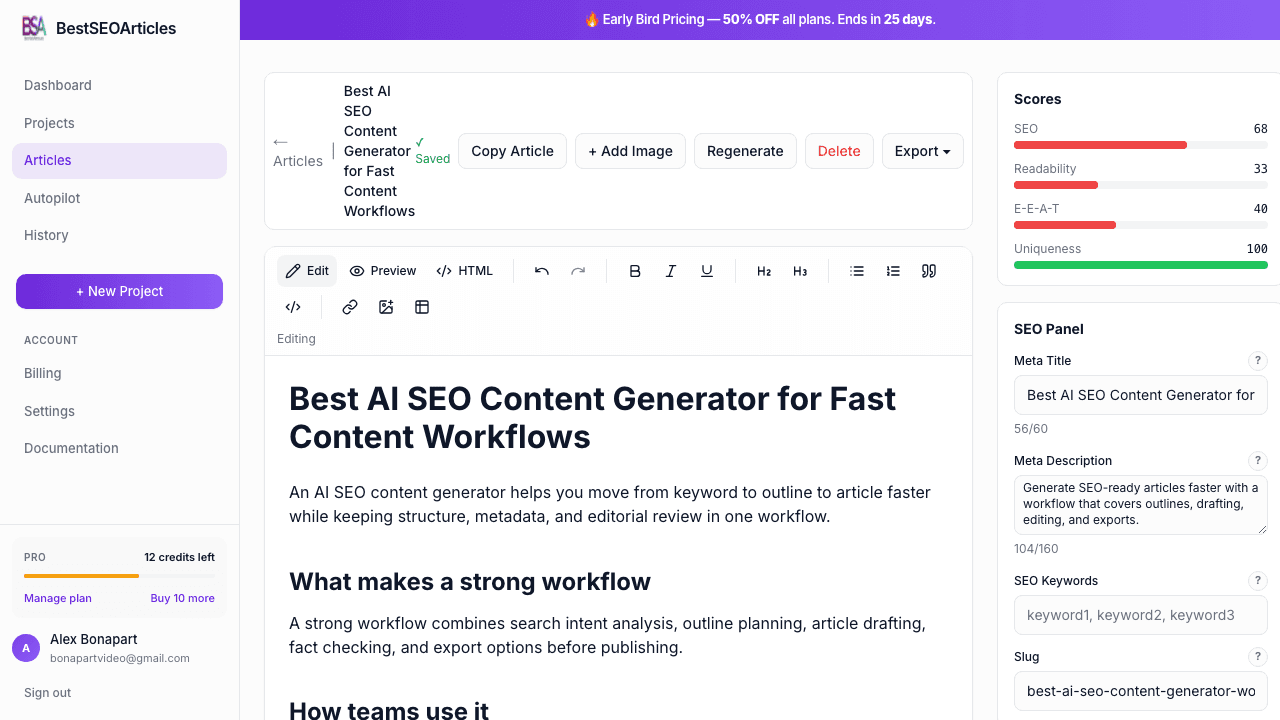
Recommended editor review checklist
- Rich text editor, edit the article body directly in the browser.
- Auto-save, the editor saves changes automatically after edits.
- Metadata fields, update meta title, meta description, slug, and related SEO fields.
- Stats and analysis, review word count, keyword density, readability, and content quality hints.
- Fact check status, see whether the article passed the fact-check stage.
- Images panel, manage generated images and download them separately.
A good final pass usually means checking the title, verifying the intro matches the search intent, scanning the headings, improving any weak CTA language, and confirming the metadata is specific and clickable.
Exporting and publishing
Once the article looks right, you can export it or move it into your publishing workflow.
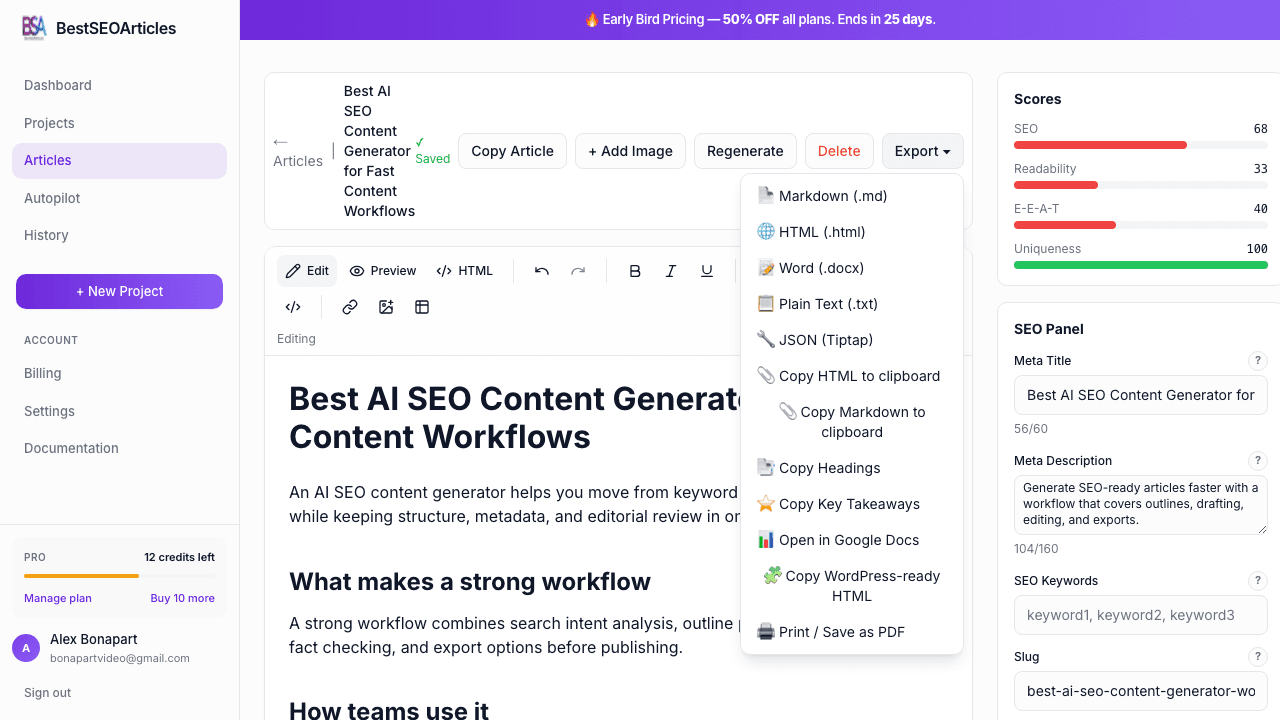
- Use export when you want manual review outside the app.
- Keep the draft in the editor if you want to continue refining inside BestSEOArticles.
- If you use Autopilot later, that is a separate publishing workflow from one-off article generation.
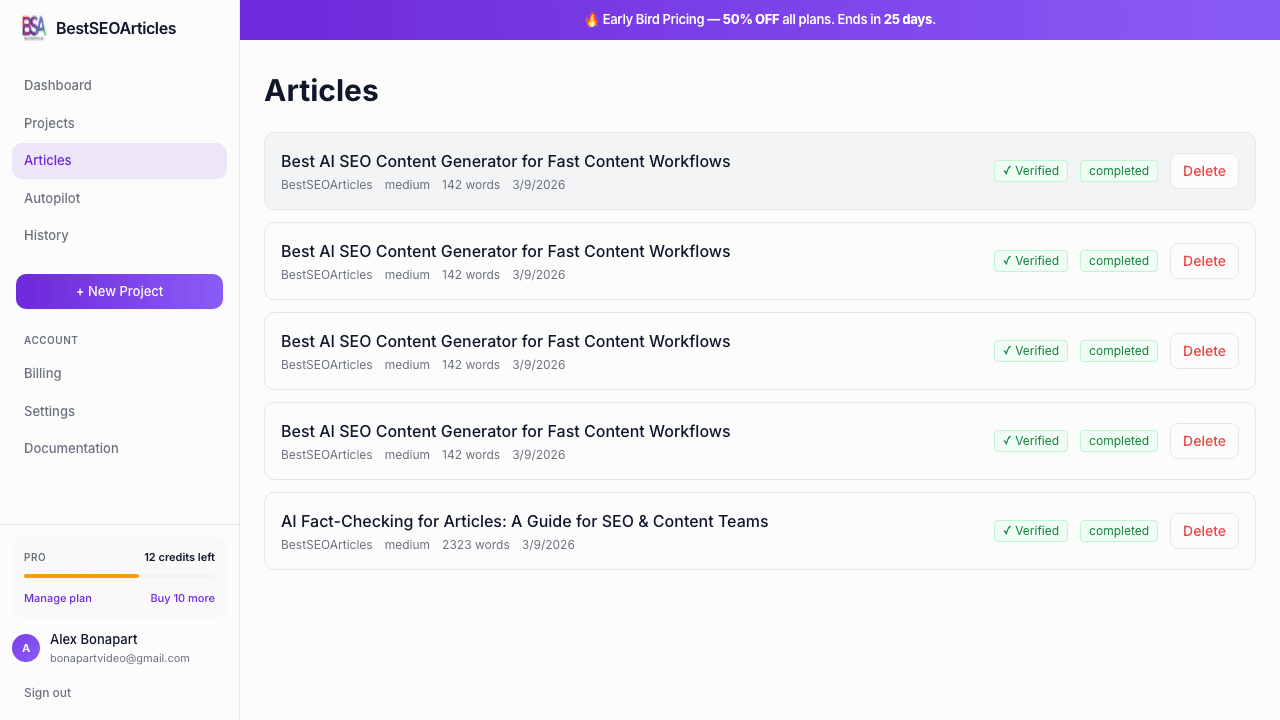
Articles list
All generated articles are also visible in the global Articles page, where you can jump back into any existing draft.
What a finished article usually includes
- A keyword-aligned title and structured article body.
- Multiple H2/H3 sections and scannable formatting.
- Lists, tables, and other format variations when relevant.
- Metadata suggestions such as title, description, and slug.
- Generated images sized to match the selected article length.
Credits
Each completed article costs 1 credit. Generated images are included in that cost.
Best practices
- Use an outline first for high-value pages.
- Use medium or long size for commercial and authority content.
- Keep editorial policy enabled if brand voice matters.
- Review metadata before export or publishing.
- Treat the first draft as fast leverage, then make a human pass before going live.
Troubleshooting expectations
- If the article is still generating, stay on the progress screen and wait for the redirect.
- If the output feels too generic, try generating from a stronger outline instead of a raw keyword.
- If the article is too short or shallow, regenerate with a larger size or a more specific keyword.
- If the article needs tighter brand alignment, review the project policy before generating again.
Next step
Once the article is ready, continue to Exporting Content to move it into WordPress, Google Docs, Markdown, or other output formats.