Publishing Connections
Publishing Connections is where you connect external platforms to BestSEOArticles so content can be published manually or through Autopilot-ready workflows.
The connections page supports six destination types: WordPress, Ghost, Webflow CMS, Shopify Blog, Medium, and a custom webhook/API endpoint.
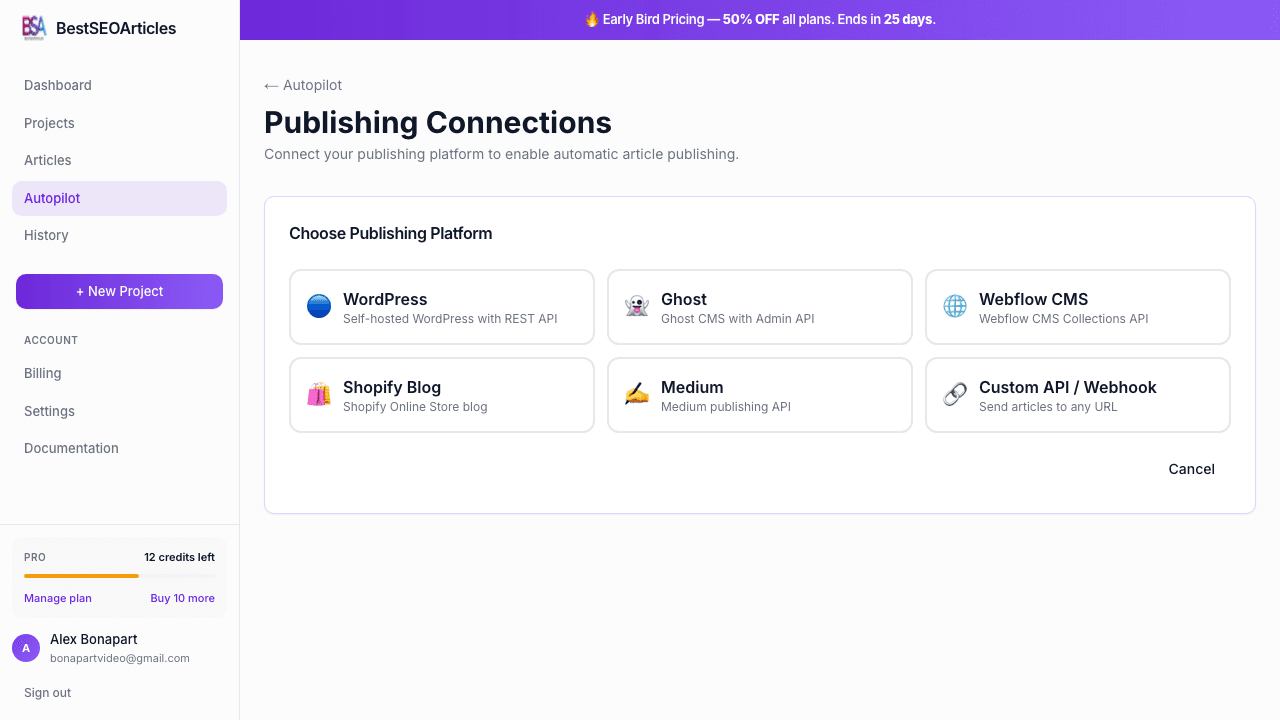
Supported platforms
| Platform | Connection model | Best for |
|---|---|---|
| WordPress | REST API + Application Passwords | Self-hosted blogs and CMS-first SEO sites. |
| Ghost | Admin API | Ghost publications and membership-led content sites. |
| Webflow CMS | Collections API | Marketing sites running Webflow CMS. |
| Shopify Blog | Shopify Admin API | Ecommerce content operations attached to Shopify stores. |
| Medium | Medium integration token | Draft-first publishing to Medium. |
| Custom API / Webhook | POST endpoint | Custom stacks such as Next.js, Rails, Django, headless CMS, or internal tooling. |
General connection flow
- Open Dashboard → Autopilot → Connections.
- Click + Add Connection.
- Choose the publishing platform.
- Enter the required credentials and identifying fields.
- Run the connection test.
- Save the connection and attach it to the relevant Autopilot project.
Best flow for Custom API / Webhook projects
If your destination is a separate product such as a Next.js app on Vercel, a Supabase-backed project, a headless CMS, or an internal publishing tool, use the built-in Cursor / Windsurf setup guideinside the connection dialog.
- Choose Custom API / Webhook in the Add Connection dialog.
- Click Open Cursor / Windsurf setup guide.
- Copy the prompt into the AI editor inside the target project, not BestSEOArticles.
- Let that editor inspect the target stack, create the receiving POST route, wire storage, and add signature verification.
- Bring the returned values back into BestSEOArticles and paste them into Webhook URL and Signing Secret.
- Run Test Connection, then save the connection.
What the target project should return
- Webhook URL, the final deployed HTTPS endpoint BestSEOArticles will call.
- Signing secret, the exact shared secret used to verify X-Signature.
- Route file, where the receiving endpoint lives in the target codebase.
- What it saves, the table, CMS model, or post type where incoming articles are stored.
- Image behavior, whether the target project keeps placeholders, replaces them, or only uses the featured image.
- How to test, the manual test steps to verify the connection end-to-end.
Required fields by platform
| Platform | Required fields |
|---|---|
| WordPress | Site URL, username, application password |
| Ghost | Site URL, Admin API key |
| Webflow | Site URL, API token, collection ID |
| Shopify | Shop domain, Admin API access token, blog ID |
| Medium | Integration token |
| Webhook | Webhook URL, optional signing secret |
Platform-specific setup notes
WordPress
- Log in to WordPress admin.
- Go to Users → Profile → Application Passwords.
- Create a new application password for BestSEOArticles.
- Copy the password immediately and paste it into the connection form.
- Use the main site URL and the matching username.
Ghost
- Open the Ghost admin panel.
- Go to Settings → Integrations.
- Create a custom integration.
- Copy the Admin API Key and add your Ghost site URL.
Webflow CMS
- Open your Webflow workspace settings.
- Generate an API token with CMS write access.
- Find the collection ID for the blog collection you want to publish into.
- Paste the site URL, token, and collection ID into BestSEOArticles.
Shopify Blog
- Create or use a Shopify custom app with content-writing permissions.
- Copy the Admin API access token.
- Find the blog ID from the Shopify admin blog area.
- Use the shop domain, token, and blog ID in the connection form.
Medium
- Create an integration token in your Medium account settings.
- Paste the token into the Medium connection form.
- Expect draft-oriented workflow behavior rather than fully automated public publishing.
Webhook / Custom API
- Create an endpoint that accepts POST requests.
- Configure the webhook URL in BestSEOArticles.
- Optionally add a signing secret for request verification.
- Return a JSON response that confirms success and, optionally, a post identifier or URL.
Webhook payload behavior today
- BestSEOArticles sends a POST request with article title, HTML, plain content, slug, excerpt, tags, meta fields, status, and featured_image_url.
- The request can be signed with X-Signature using HMAC-SHA256 and your shared secret.
- The article HTML may still contain image placeholders for inline images.
- BestSEOArticles does not currently send a full inline image array for automatic placeholder replacement in external projects.
- If the receiving project needs inline image replacement, that logic must currently be implemented on the target side or handled manually.
Security and verification
- BestSEOArticles provides a connection test flow so you can verify credentials before relying on them.
- The product UI states that credentials are encrypted at rest.
- Use platform-scoped credentials instead of personal master credentials whenever possible.
Troubleshooting checklist
- Confirm the base URL is correct and includes the proper protocol.
- Re-create credentials if the platform only shows them once.
- Check scopes and API permissions for Webflow, Shopify, and custom apps.
- Run the connection test before enabling Autopilot publishing.