Exporting Content
BestSEOArticles lets you export generated articles in several formats, copy content directly to the clipboard, and download generated images separately. The export workflow is designed to fit common publishing stacks rather than forcing one output format.
All export actions start from the article editor. Open an article, then click the Export ▾button in the top-right toolbar.
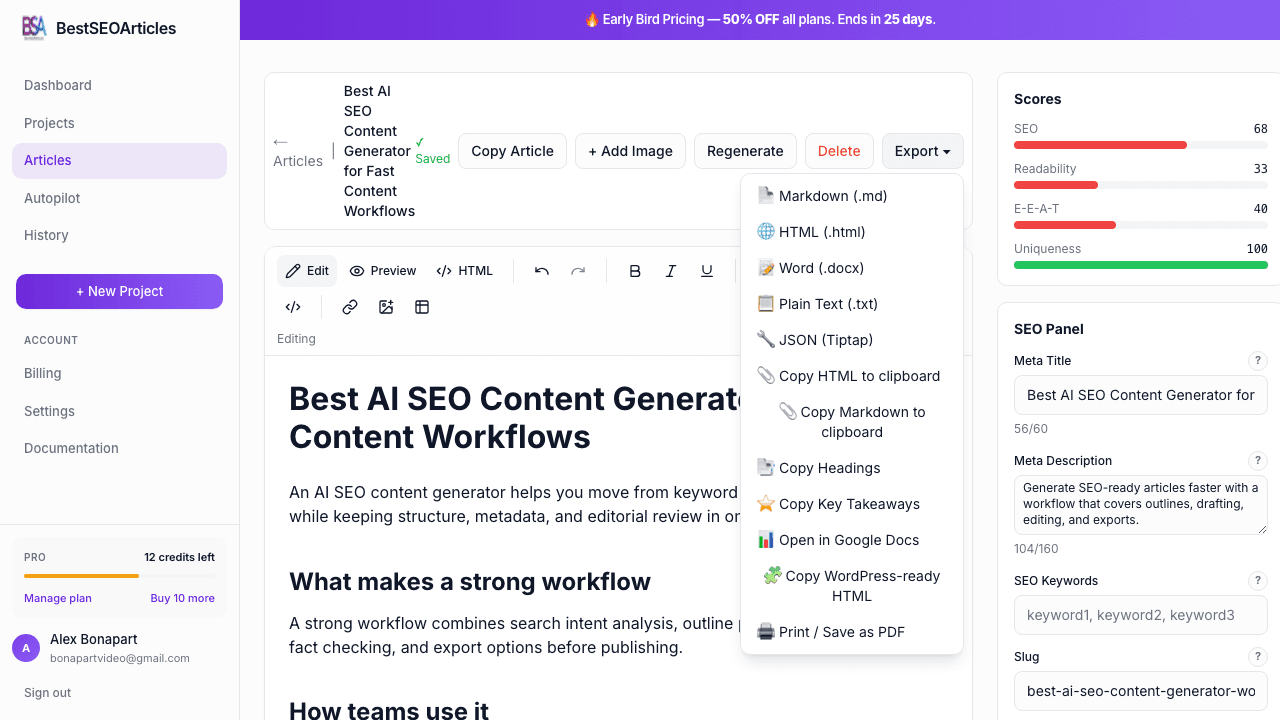
Download formats
| Format | Best for | What you get |
|---|---|---|
| Markdown (.md) | Static sites, markdown editors, version-controlled content | Portable markdown version of the article. |
| HTML (.html) | Custom CMS workflows and direct web publishing | Standalone HTML export of the article body. |
| Word (.docx) | Microsoft Word and manual editorial review | A DOCX file for office-style editing workflows. |
| Plain Text (.txt) | Simple review, email, or raw-text archives | Formatting removed, content preserved as text. |
| JSON (Tiptap) | Programmatic reuse and structured editor integrations | The editor’s structured JSON document format. |
Clipboard actions
Several export actions are optimized for quick publishing rather than file downloads.
- Copy Article copies the article with formatting when the browser supports rich clipboard writes.
- Copy Markdown gives you a markdown version directly in the clipboard.
- Copy Headings extracts the H2/H3 structure for planning, briefs, or social repurposing.
- Copy Key Takeaways extracts the takeaways-style content when present.
WordPress-ready HTML
BestSEOArticles includes a WordPress-specific export that copies a WordPress-ready HTML version to your clipboard. This is useful when you want cleaner handoff into the WordPress editor or a Custom HTML block.
- Open the article editor.
- Click Export ▾.
- Choose the WordPress-ready export option.
- Paste the copied HTML into the WordPress editor or HTML block.
- Download generated images separately from the Images panel if needed.
Google Docs workflow
The Google Docs export opens a new Google Doc while also copying rich text to your clipboard. This makes it easy to move an article into a collaborative editing flow.
- Click Export ▾ from the article editor.
- Choose the Google Docs option.
- A new Google Doc opens with the article title.
- Paste with Ctrl+V or ⌘+V to preserve formatting.
Image downloads
Generated images are handled separately from article-body export. Use the Images panel in the editor sidebar to manage each image file.
- PNG, best for lossless quality and graphics-heavy use cases.
- JPG, useful when you want smaller files for blog publishing.
- WebP, modern web-optimized format with good compression.
When to choose each export path
| Goal | Best export path |
|---|---|
| Publish to WordPress manually | WordPress-ready HTML or Copy Article |
| Move into Google Docs for review | Google Docs |
| Store content in git or static-site workflow | Markdown |
| Send structured article data to another system | JSON (Tiptap) |
| Share a quick clean draft by email or chat | Plain Text or Copy Article |
Good export hygiene
- Review title, meta description, and slug before exporting.
- Download images if your publishing platform does not ingest them automatically.
- Use the article editor for last-mile cleanup before sending content to a CMS.